
Uncategorized
What Is Popstar AI? How the Video Trend Works
Learn what Popstar AI does, how the one-photo pop-star video trend works, what the Lil Ney meme shows, and how to make an original version.
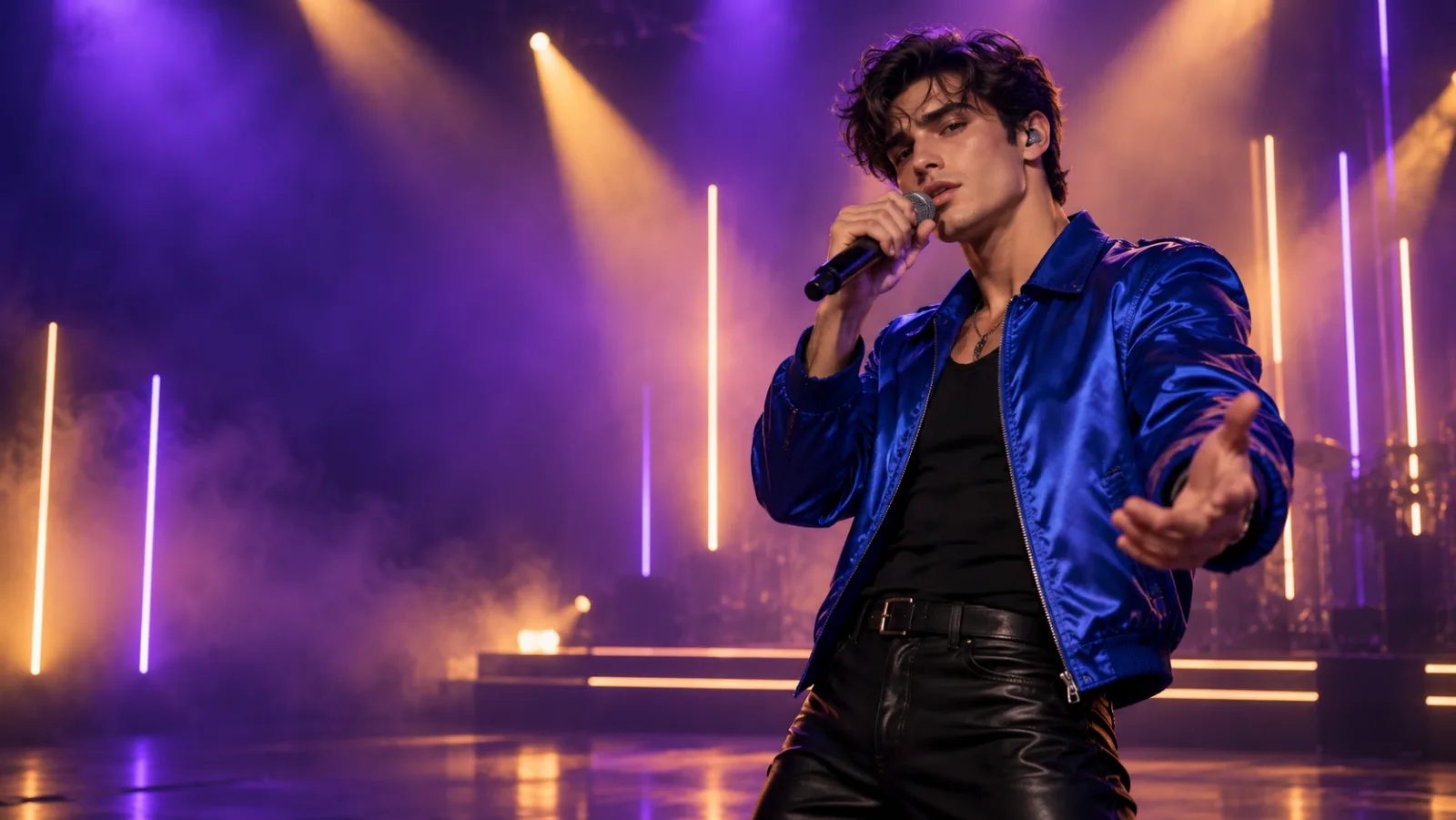
Popstar AI is a browser-based, one-photo music-video effect promoted by popstarai.video. Its own product description says it places an uploaded photo into a fresh AI rendition of Justin Bieber’s role in DJ Khaled and Drake’s 2020 “POPSTAR” music video. A separate 2026 “Lil Ney” clip shared by Neymar drew attention to the same reference, but reporting did not identify the generator he used.
This guide explains what the named tool says it does, how it differs from the Lil Ney meme, and how to make a distinct pop-performance clip with an image or text prompt. The sample workflow below uses fictional adult performers. The illustrations and silent storyboard are original editorial assets, not outputs from Popstar AI or Trending AI Video.
If you want to make an original clip, start in the Image to Video workspace with an image you have permission to animate, or try a fictional scene in Text to Video. The AI Video workspace shows the general creation options, and the Trending AI Video home page links to the rest of the site.
What Is Popstar AI?
“Popstar AI” can refer to a particular web tool or a broader style of AI-made pop-performance video. The named service at popstarai.video describes itself as a fan-built browser tool: upload one photo, generate a new interpretation of Justin Bieber’s part in the “POPSTAR” video, then export an MP4. Its page describes vertical 9:16 and horizontal 16:9 output and says the original recording is included.
Those details are the service’s own description, not an independent test of its current performance. The site says an outside provider handles rendering, results can vary, and fast gestures may come out imperfectly. Its about page also says the project is not affiliated with the artists or the official video. A product can change its provider, controls, or access model, so check the live page before relying on a specific option.
The song “POPSTAR,” featuring Drake, was released by DJ Khaled in July 2020. The official video followed later that year and featured Bieber. That reference explains why a one-photo celebrity-role effect is recognizable: the concept inserts a new face into a familiar, already released performance. It does not make a generated clip official footage or an authorized collaboration.
What Does the Popstar AI Tool Do?
The named tool’s flow is intentionally narrow. You supply one still image, the service renders a video around that likeness, and the download is an MP4. The service says it recreates the visual role and includes the record, rather than asking the user to build a scene from several prompts or edit separate audio.
The one-photo shortcut can be convenient, but it offers less creative control than a general video workspace. You may not be able to set each camera move, choose individual scene beats, or alter the soundtrack independently. A familiar song can also raise questions about where and how an export may be shared. Read the service’s current terms and the rules of your publishing platform before posting or using it in a campaign.
There is an important distinction between a tool’s stated feature and a verified result. A product page can say “one photo” or “MP4 export,” but that does not prove which model is behind a particular output, how consistently it preserves identity, or whether a specific user made a particular viral clip. This article uses product claims as product claims and labels the open questions separately.
How Popstar AI Differs from the Lil Ney Trend
“Lil Ney” is the nickname used for an AI-made Neymar interpretation of the “POPSTAR” video. In an October 2, 2026 report, CNN Brasil said Neymar shared the clip on Instagram and described how he appeared in scenes associated with Bieber’s role. The report also quoted a commenter calling the edit “Ney Bieber.” That public post made the concept newly visible to football and music audiences.
The nickname identifies the subject and joke; it does not identify the software. A repost, caption, or comment can show that a clip circulated, but it cannot tell readers which generator made it. Search pages may place Popstar AI and Lil Ney side by side because the images share a reference. That proximity is not proof of a product connection.
For a reader, the useful difference is intent. A Popstar AI query may mean “What is this named one-photo tool?” A Lil Ney query may mean “What is the Neymar clip, and where did the joke come from?” A general pop-star AI query may mean “How do I make a new performance clip?” The steps in this guide answer the third question without claiming to reproduce either existing video.
Did Neymar Use Popstar AI?
The available reporting does not confirm that Neymar used Popstar AI. CNN Brasil reported that he posted an AI-made clip, but its story did not name the generator. Popstarai.video’s own page discusses the Bieber-based tool, yet it does not establish that the Neymar post was generated there.
That uncertainty matters because an attractive search result can turn an unverified guess into a repeated claim. Unless the creator names the tool or a reliable source documents the production workflow, the accurate answer is “unknown.” The clip can be discussed as an AI-made “POPSTAR”-inspired edit while leaving the generator unconfirmed.
The same standard applies when you publish your own video. Say which tool you used only if you know it. If you made a similar scene with another generator, describe it as an original AI pop-performance edit rather than calling it the Neymar tool or an official remake.
Popstar AI and General AI Video Tools Compared
The dedicated site and a general video workspace solve different jobs. The table summarizes what the product page claims and what a flexible workflow can do in principle. It does not rank the services or promise that every general model offers the same settings.
| Decision | Named Popstar AI site | General image or text to video |
|---|---|---|
| Starting point | Product page describes one uploaded photo | An authorized photo or a written scene prompt |
| Main concept | A rendition of Bieber’s role in “POPSTAR” | An original performance, setting, and action |
| Audio | Product page says the original song is included | Add audio separately when the export and platform allow |
| Direction | A focused preset-style effect | More room to define framing, action, camera, and ending |
| Best fit | Trying the named one-photo effect | Building a distinct clip and reviewing its parts |
| Verification limit | Current controls and quality can change | Model options and results can change |
On this site, the current workspace is a general video creation surface, not an official POPSTAR or celebrity preset. The active model catalog and duration or resolution controls can change. For a general experiment, use Image to Video for a reference-led scene or Text to Video to invent a fictional performer from scratch.
What You Need Before You Make a Pop-Performance Video
Start with a clear idea of who appears and where the finished clip will be shown. If the subject is fictional, describe an adult performer and avoid asking for a real singer’s face. If you plan to animate another person, get their permission for the AI transformation and the intended sharing. A public profile photo is not an open license to create a new performance.
Pick the frame shape before generating. Vertical 9:16 works well for phone-first feeds; 16:9 gives a horizontal edit more room. Keep the face, hands, and important movement inside the central safe area. Phone interfaces add icons, captions, and controls near the edges, so leave space for them.
Use one visual idea and one main movement. A performer walking into a small stage and delivering a short gesture is easier to follow than a sequence with a hallway, a car, a dance routine, a crowd, three camera orbits, and a costume change. You can add complexity after you see how the first draft handles the character and the timing.
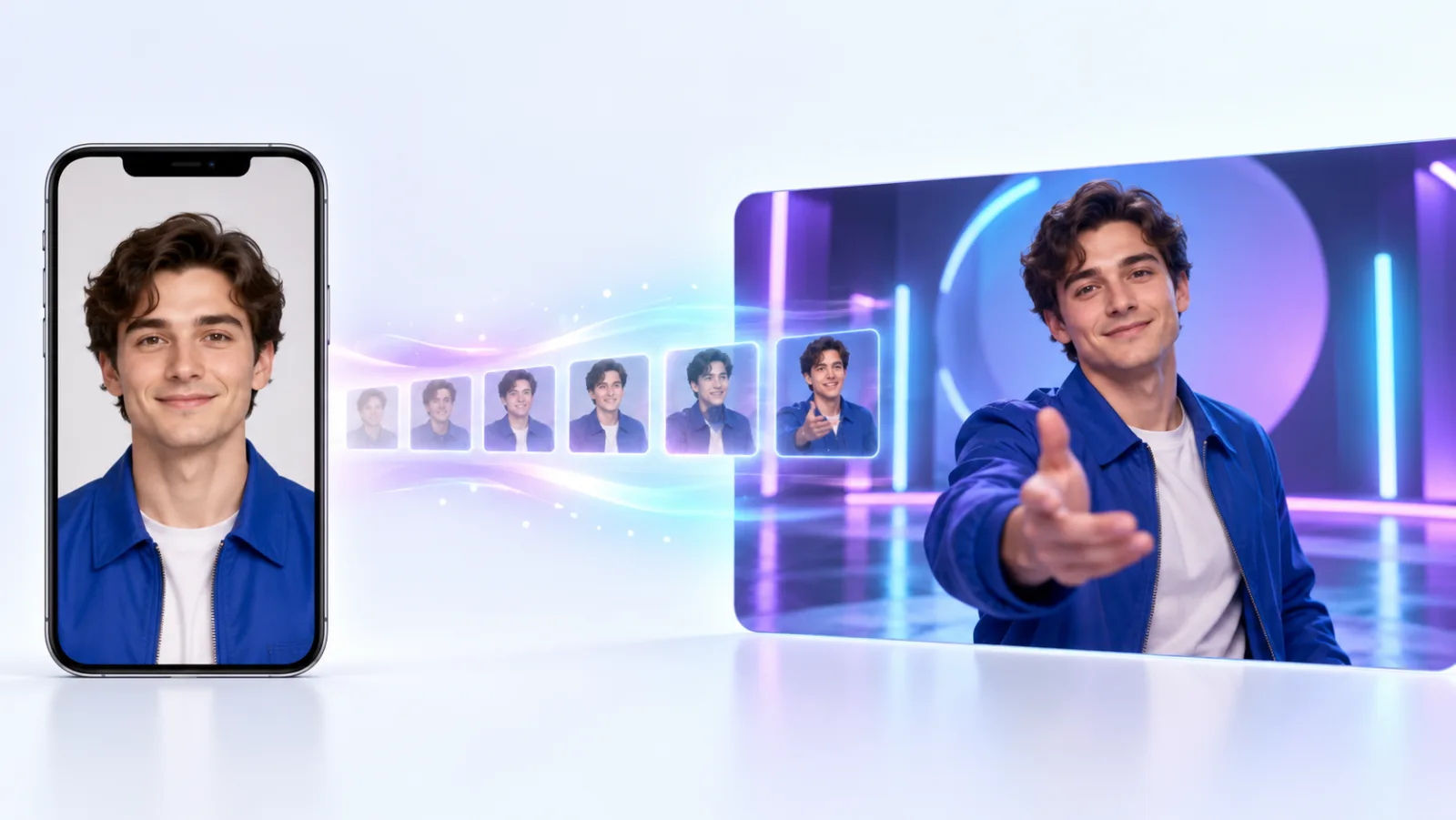
Plan Three Beats Before You Write the Prompt
A short music-video idea still benefits from a beginning, middle, and end. Keep each beat visually distinct so you can judge the render rather than guessing what the model intended.
- Entrance: The fictional adult performer steps through a backstage doorway into a compact stage.
- Performance: The performer makes one restrained gesture toward the camera while a cobalt and amber light sweep crosses the background.
- Finish: The camera holds on a relaxed final pose with the performer centered and unobstructed.
For a reference photo, describe the movement that can plausibly grow from the starting pose. If the person faces front with hands down, a small step and one hand gesture give the model a modest task. A full-body dance sequence may drift more quickly from the reference. For text-to-video, describe the same character and outfit in every beat to give the model an identity to maintain.
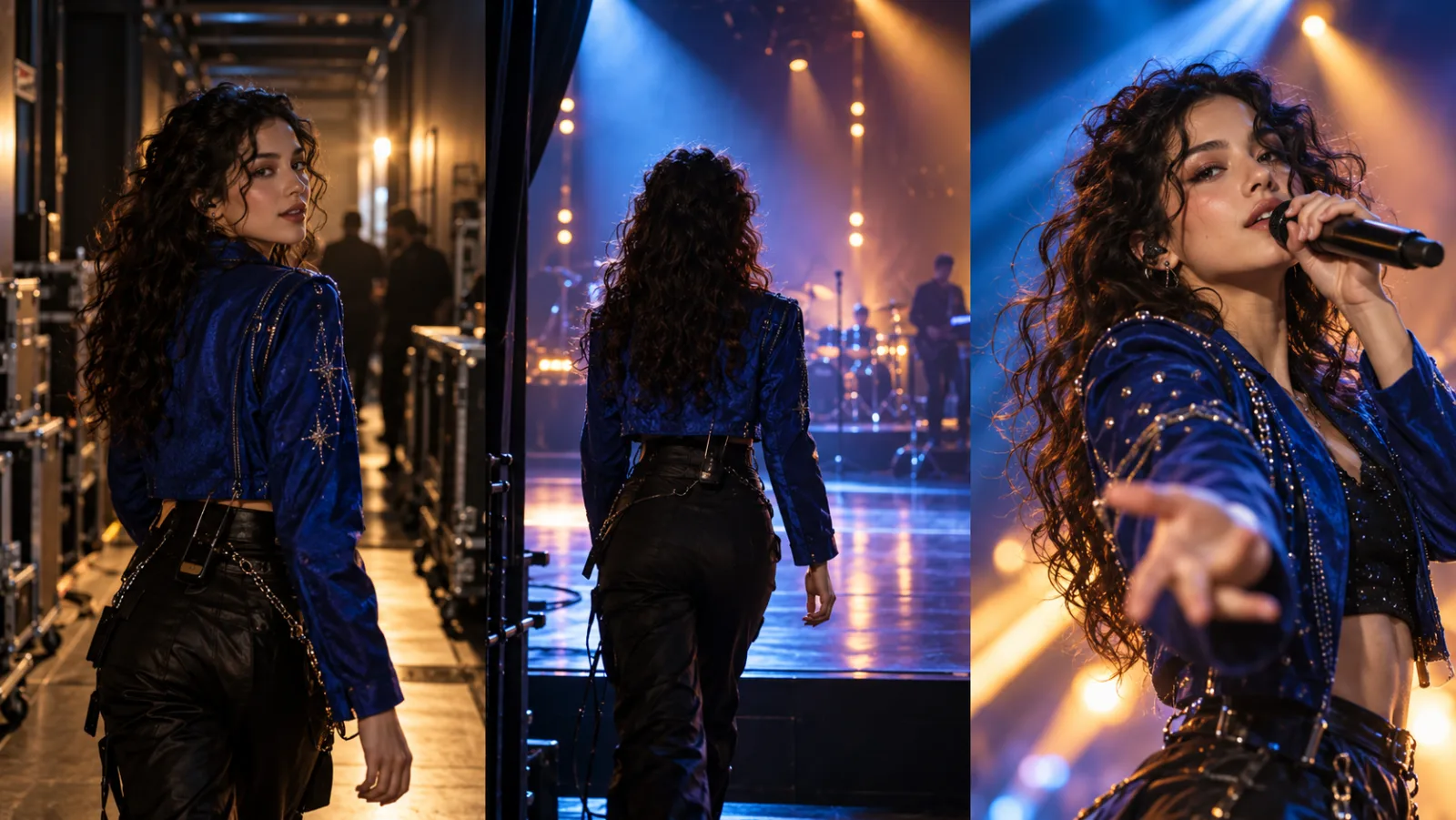
The accompanying video is a six-second silent storyboard built from our original still illustrations. It is not a screen recording, not an example generated by the Popstar AI site, and not a claimed output of Trending AI Video. It shows how a creator can break a concept into readable stages before generating motion.
How to Make an Original Pop-Star AI Video: Six Steps
This workflow uses the general video creation modes on Trending AI Video to build an original performance concept. The currently listed Doubao Seedance 2.0 Mini entry in the workspace code supports reference-to-video, a 4-to-15-second duration range, and 480p or 720p output. Check the live model selector before you start because provider controls and availability may change.
Step 1: Choose a fictional adult or authorized reference
Use a fictional adult character when you do not need a particular person’s likeness. If you have permission to animate an adult you know, be clear about the intended scene and where the clip may be shared. Avoid using a stranger, a child, a celebrity, or a performer’s photo as a shortcut to attention.
Step 2: Prepare a usable starting image
Choose a sharp photo with even light and a simple background. A waist-up frame gives the model face and clothing detail; a full-body frame gives more information about posture and movement. Keep identifying details out of the background if the person would prefer not to reveal a location or workplace.
Step 3: Select a frame and mode
Open Image to Video for a reference image or Text to Video for a fictional scene prompt. Choose portrait or landscape framing based on the place you plan to post. Confirm the model, duration, resolution, and any usage cost shown in the live workspace; these are current interface settings, not permanent guarantees.
Step 4: Describe one small performance action
Write the first pose, one clear action, and the final pose. Keep the camera still or give it one simple movement. Ask for a restrained gesture such as a step forward, a brief shoulder turn, or a hand raised toward the lens. Long choreography makes identity drift and timing errors harder to correct.
Step 5: Generate a draft and inspect it
Watch the entire result once at normal speed. Then inspect the beginning, the movement, and the last frame. Look for face or outfit changes, strange hands, a disappearing microphone, lip movements that do not fit, or an ending that cuts off the performer. A good-looking first frame does not guarantee a consistent clip.
Step 6: Edit audio, label, and export
Keep the generated visuals and the publishing soundtrack as separate decisions. Use audio that you are allowed to publish through the destination platform or another licensed source. If the scene looks realistic, identify it as AI-generated and use the current disclosure setting where available. Preview the final crop on a phone before posting.
Copyable Prompts for an Original Pop Performance
These prompts describe new fictional scenes. They do not ask a video model to reproduce Justin Bieber, Neymar, the official “POPSTAR” video, a famous costume, or a specific choreography. Replace details only with material you own or have permission to use, then keep the action short enough to inspect.
Prompt 1: A short stage entrance
Create a short, original performance video featuring one fictional adult singer with short dark curls and a cobalt jacket. Begin in a quiet backstage corridor, then show the same person taking two calm steps onto a small stage. Keep the face, hair, jacket, and body shape consistent. Use one steady forward camera move, blue stage light with a warm amber edge, and a clean final hold. No celebrity likeness, no copied music-video scene, no logos, no words, no crowd.
Prompt 2: Reference photo, one gesture
Animate the authorized adult reference photo as the same person in an original pop performance. Preserve their face, hairstyle, skin tone, and cobalt stage jacket. Show one slow step toward camera and one relaxed hand gesture, then hold the final pose. Keep the camera at chest height with a simple blue and amber studio background. Do not change clothing, add people, imitate a real singer, add logos, or generate text.
Prompt 3: A vertical phone-first performance
Create a vertical 9:16 performance clip with one fictional adult performer visible from head to toe. The performer walks one step into a small violet-lit stage, turns slightly toward camera, and pauses in a relaxed final pose. Keep the subject centered with space above the head and below the feet for a phone interface crop. Use a fixed camera, consistent clothing, and no fast dance moves, celebrity likeness, logos, or text.
Prompt 4: A clean lip-sync style close-up
Create an original close performance shot of one fictional adult singer facing camera in a small dark studio. Keep the face and outfit consistent while the performer gives a subtle singing expression and one slight head turn. Use a soft cobalt key light and warm amber background lights. Do not claim to reproduce a known recording, do not add lyrics or readable text, and do not imitate a real person.
Prompt 5: A landscape performance with room for titles
Create a horizontal 16:9 original pop performance video with one fictional adult performer in a plain cobalt jacket. Place the performer just right of center on a compact stage, leaving calm negative space on the left for later editorial copy. Show one step forward, a brief glance toward camera, and a steady final pose. Use a restrained camera push, coherent light, and consistent appearance. No copied music-video staging, real-person likeness, logos, or text.
A prompt is a starting description, not a guarantee of a clean render. Use one version at a time, save the strongest draft, and change one instruction after you see what failed. If the face changes, reduce motion and simplify the background. If the action feels too still, add one gesture before asking for a full routine.
Keep the Character and Framing Consistent
A general video model may change hairstyle, clothing, facial details, props, or hand shape from one moment to the next. That does not mean your reference photo was unclear; motion generation has to invent the frames between the source image and the requested ending. Keep the same character description in each prompt, limit the amount of movement, and ask for a stable final hold.
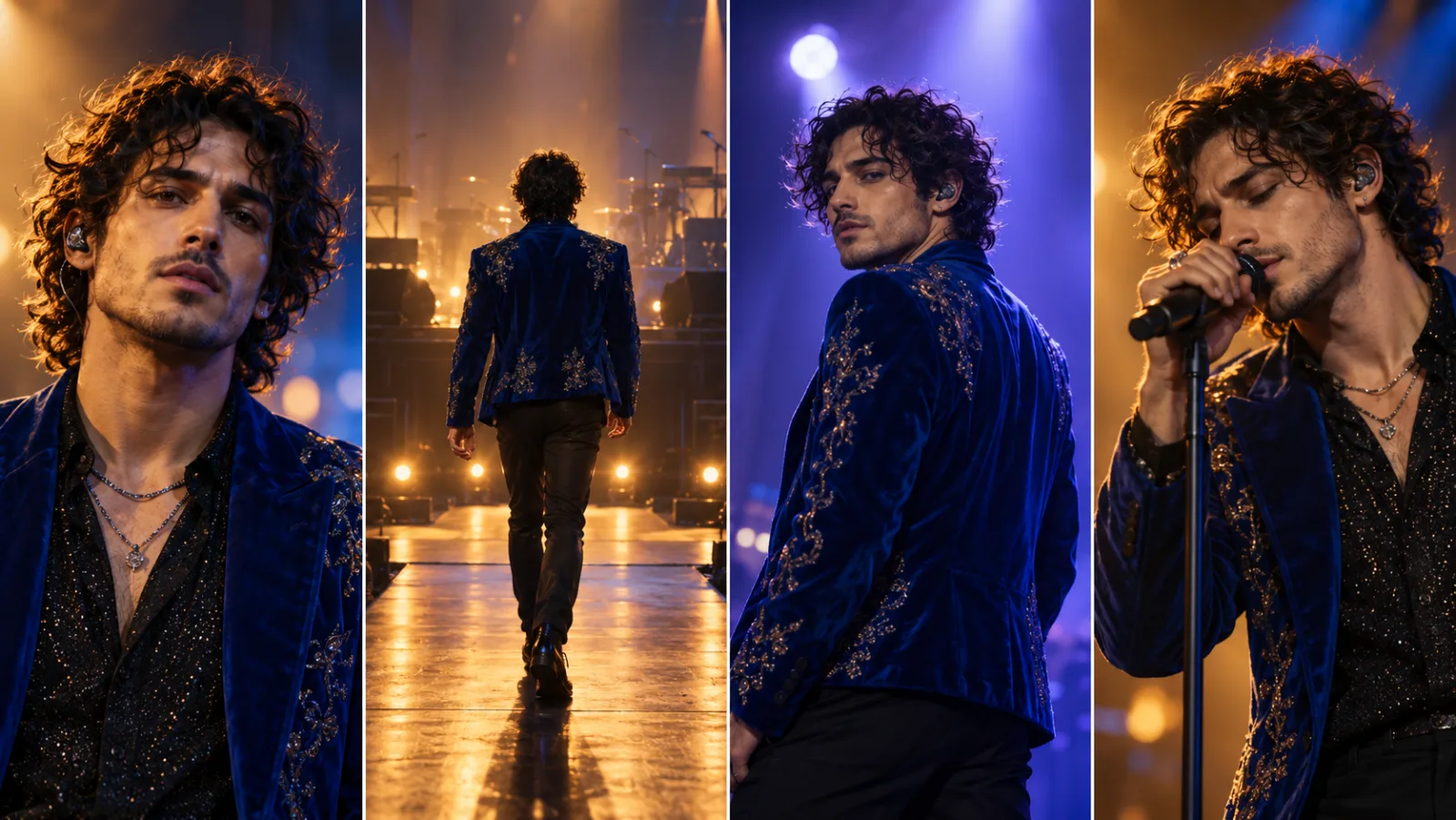
For a vertical scene, keep the performer centered and leave room around the head and feet. A tight crop may look dramatic on a desktop preview, then lose a hand or shoe beneath platform controls. Use a clear background and avoid putting any important action against the far edge.
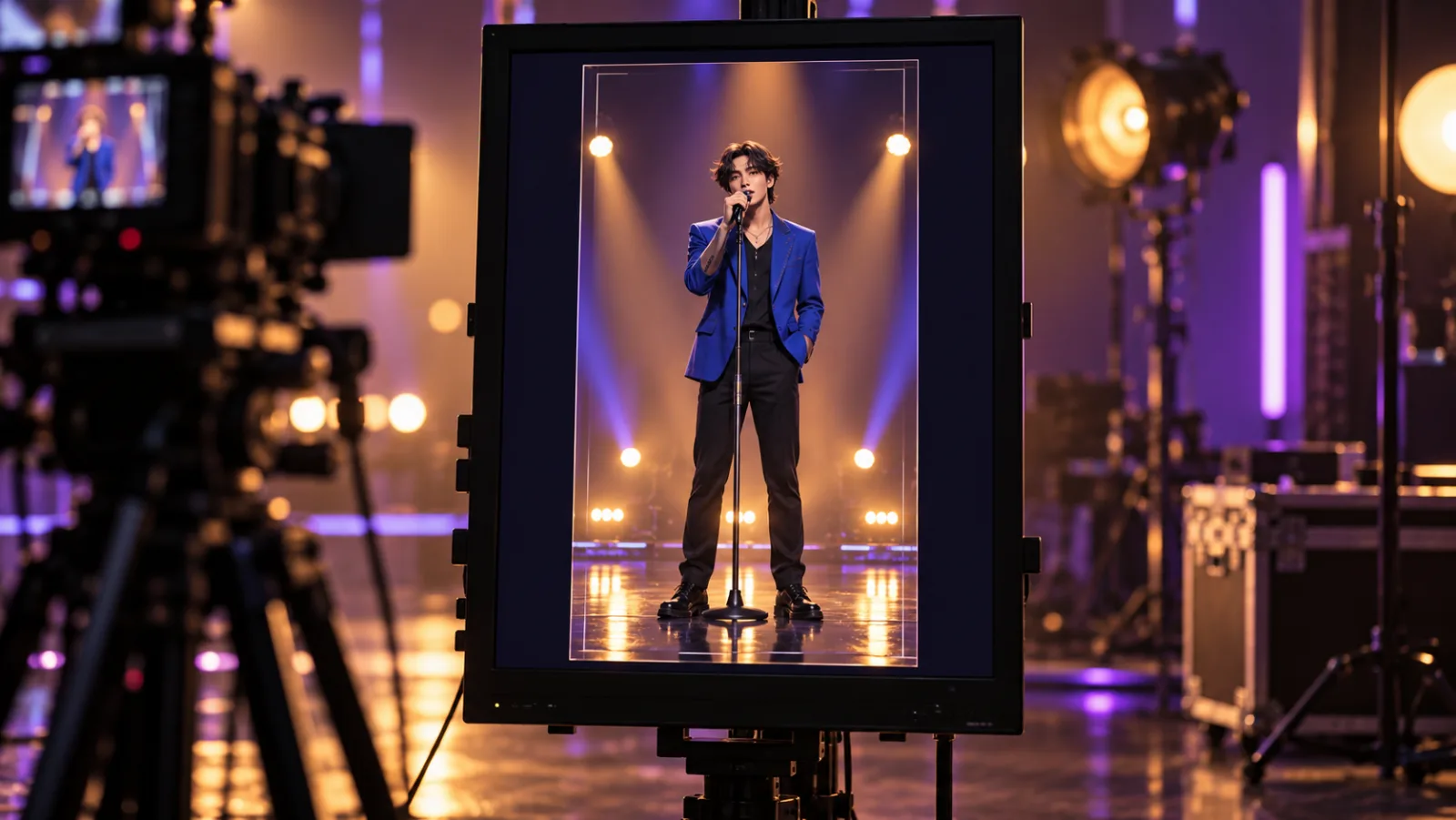
The image above is an editorial composition tip, not a capture from the workspace. Trending AI Video currently routes image-to-video prompts through a model catalog, while specific model inputs vary. Inspect the active interface for supported ratio, duration, reference count, and resolution before planning around them. Do not assume the controls shown today will remain the same after a provider update.
Troubleshoot Common Popstar AI Video Problems
| What you see | Likely reason | A useful next try |
|---|---|---|
| The face changes during the clip | Too much movement or a distant full-body frame | Use a clearer reference, shorten the action, and hold the camera still |
| Hands or microphone look distorted | The prompt asks for detailed fast gestures | Use one slow gesture and inspect the close frames |
| The performer is cropped off-screen | Portrait framing is too tight or subject moves toward an edge | Reframe with head and feet margin and reduce camera travel |
| The result resembles a known music video too closely | The prompt or reference copies specific staging | Replace it with a new setting, outfit, camera path, and movement |
| A clip has visuals but no usable soundtrack | Generated visuals and licensed publishing audio are separate | Add an approved track in an editor or the publishing platform |
| The ending feels abrupt | The requested action fills the entire duration | Ask for a steady final pose and trim after a short hold |
Change one part of the prompt per attempt. If you simultaneously change the image, character, lighting, movement, and lens, it is hard to tell what helped. Keep a note of which version produced the clearest face and final pose. A prompt log also helps you recreate the same creative direction without treating any single output as guaranteed.
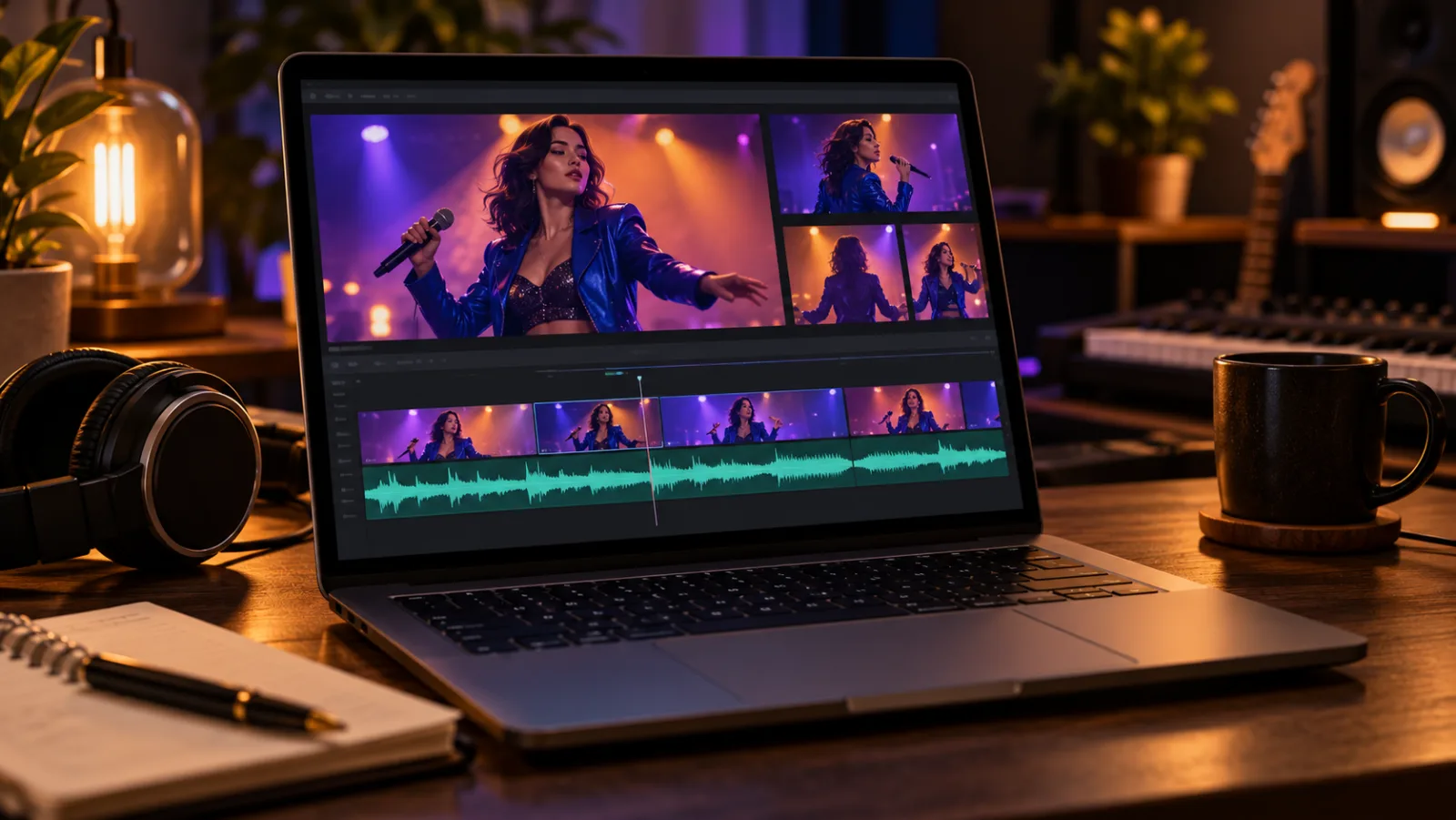
Edit the Music and Visuals Separately
The official “POPSTAR” recording and an AI-made visual are separate works. A tool may include audio as part of a generated export, but that does not establish permission for every account, region, platform, or commercial use. Check the current service terms and destination platform rules, and use audio that is cleared for your intended use.
For a general workflow, finish the picture first. Trim the entrance, performance beat, and ending so they read clearly. Then add a soundtrack through a platform library or another source that permits your planned use. Captions can explain that the character is fictional and the performance is AI-generated. Avoid claiming that a real artist approved the clip or recorded its vocal.
Lip movement does not prove that the model used the original song. A video can show a mouth moving while the sound comes from an editor, a separate generation step, or no audio at all. Describe what you actually did, especially if you post a behind-the-scenes explanation.
Consent, Attribution, and Publishing Checks
A likeness can be recognizable even when it appears in a fictional scene. Use your own image or get clear agreement before animating someone else. Explain that the photo will be transformed, where it may be posted, and whether it may be reused. Do not use a child or a public figure’s image to make a clip seem endorsed or authentic.
Keep the creative reference general. A color palette, stage mood, or broad genre description gives you room to make something new. A named performer, copied video frame, signature outfit, or request to reproduce exact choreography can make the result misleading or too close to existing work. Write prompts around your own story and review the output before sharing.
If a clip could be mistaken for real footage, label it as AI-made in the caption and use the platform’s current synthetic-media disclosure controls. Keep the description accurate: say “original AI pop performance” rather than implying an official music video, endorsement, or tool attribution you cannot verify. These are practical publishing checks, not legal advice.
How This Guide Was Verified
The tool description in this guide comes from the Popstar AI service’s own about page and homepage, observed on October 24, 2026. The Lil Ney detail is based on an October 2, 2026 CNN Brasil report about Neymar’s Instagram post. That article did not name the video generator, so this guide leaves the tool attribution unknown. The song’s release date was checked against its official Apple Music listing, and this site’s model and video workspace details were checked against the current repository catalog and routes.
Search results for “Popstar AI” on the same date showed mixed intent: a product query for popstarai.video, explanatory pages about the trend, and questions about Lil Ney. Results are a snapshot, not search-volume data or a guarantee of ranking. This guide answers the named-tool, meme-attribution, and original-workflow questions on one page while keeping product claims and independent reporting distinct.
Frequently Asked Questions
What is Popstar AI?
Popstar AI is the name used by popstarai.video for a browser-based, one-photo music-video effect. Its product page says it creates a new AI rendition of Justin Bieber’s role in DJ Khaled and Drake’s “POPSTAR” video. The service says it is a fan project and is not affiliated with the artists.
Did Neymar use Popstar AI?
That is unconfirmed. CNN Brasil reported that Neymar shared an AI-made “Lil Ney” clip inspired by the “POPSTAR” video, but the report did not identify the generator. Do not assign the clip to a specific tool without a source that documents it.
Can I make a Popstar AI video from one photo?
The named service describes a one-photo flow. A general image-to-video model can also animate a reference image, but its controls and output are different. Use only a photo you own or have permission to animate.
Does Popstar AI include the original song?
The service says that its export includes the original song. Check its current terms and the publishing platform’s current audio rules before sharing. A downloaded track is not automatically cleared for every use.
Can I use a celebrity photo or my friend’s picture?
Use another person’s image only with clear permission for the AI transformation and the intended sharing. Do not use a public figure’s likeness to suggest endorsement or make synthetic footage look authentic.
How can I make an original pop-star video with Trending AI Video?
Start with a fictional adult or an authorized adult reference, choose Image to Video or Text to Video, set a simple frame, and describe one movement. Generate a draft, inspect the face and hands throughout, then edit the audio and label the clip if it looks realistic.
Does Trending AI Video have a Popstar AI preset?
No. The current workspace offers general creation modes rather than a dedicated Popstar-branded or celebrity preset. You can use those modes to make a new performance concept with a fictional adult.
Is a Popstar AI output guaranteed to match the photo?
No. The named service says results vary, and motion models can change facial details, hands, clothes, or timing. Review each frame and keep only a take that accurately represents what you intend to publish.
Make Your Own Original Pop-Performance Clip
Popstar AI is a specific one-photo tool whose product page describes an AI rendition of Bieber’s role in the “POPSTAR” video. The Lil Ney post is related by reference, but reporting did not confirm which tool made it. If you want to create your own version of the broader idea, use an original scene, a fictional adult or an authorized reference, and a short action that you can review.
Start in the Image to Video workspace for a permitted photo, or use Text to Video for a fictional performer. For more projects, browse the AI Video workspace, read our Chuttamalle AI dance video guide for another music-led workflow, see the Bottle Kick Challenge video guide for a short-form storyboard example, or visit the Trending AI Video home page.