
Uncategorized
How to Make a Chuttamalle AI Video Safely
Learn how to make a Chuttamalle-inspired AI dance video from a photo you have permission to use, with safe prompts, image-to-video settings, and editing tips.
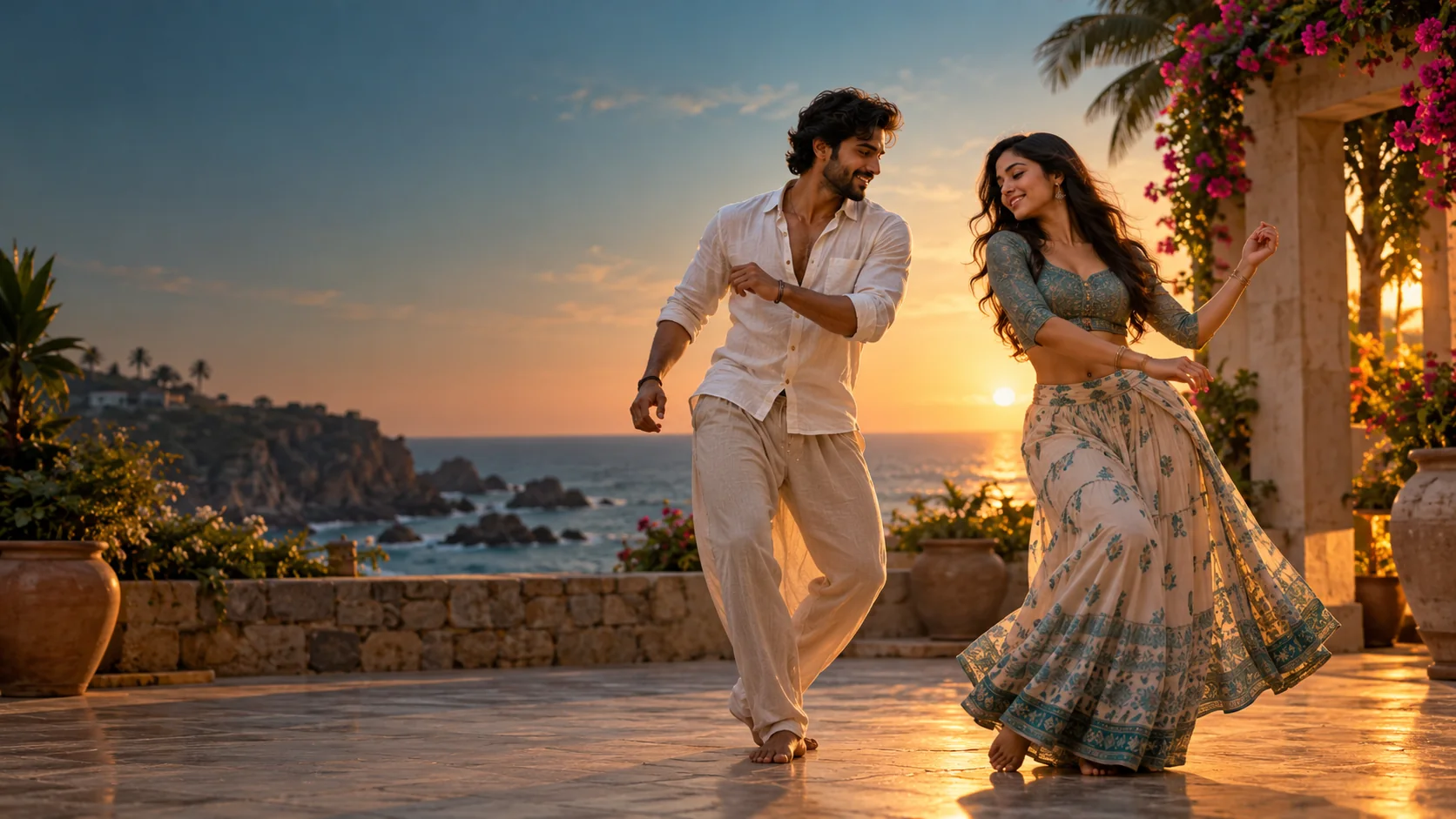
Chuttamalle is the Telugu song from the 2024 film Devara: Part 1. If you want to make a Chuttamalle AI video, create a new dance scene from a photo you own or have permission to use. Keep the person an adult who has agreed to the edit, write an original motion prompt, and add any song separately through the destination platform's current audio tools.
This guide is about making a short, clearly labeled fan-style dance clip. It does not recreate the film footage, copy a performer, or reproduce the song's choreography. The generated examples below are editorial illustrations, not outputs from Trending AI Video.
Start with a photo you are allowed to animate in the Image to Video workspace. You can also visit the Trending AI Video home page to see the other creation options.
What Chuttamalle Refers To
Chuttamalle is a Telugu-language song from Devara: Part 1. The official release presents N. T. Rama Rao Jr. and Janhvi Kapoor, with music by Anirudh Ravichander and vocals by Shilpa Rao. People searching for the title may be looking for the original song, a dance clip, or a way to make a new video with a similar romantic mood.
Those are different jobs. The film's music video is an existing production. An AI-generated dance scene is a newly synthesized visual. A fan edit adds media in an editor. Calling all three a Chuttamalle AI video can make it hard to tell which one a tutorial actually explains, so this page states its scope: an original scene, made with an authorized adult reference photo, with music handled as a separate publishing decision.
The distinction matters for the subject as well as the viewer. A prompt can describe a warm, cinematic dance mood without using an actor's face, the movie's footage, lyrics, or signature choreography. That gives you a clip you can present as your own experiment rather than a false version of the official performance.
What People Mean by a Chuttamalle AI Video
Current search results use the phrase in several ways. Some pages offer photo-based dance generators. Other explainers discuss AI-altered footage associated with the song. News reports in October 2026 covered a non-consensual manipulation of film footage and the public response to it. That incident is separate from an original dance video made with the permission of the person in the reference image.
A public discussion on a Telugu cinema subreddit also showed people reacting to link requests and to the use of AI in that incident. One thread cannot represent every viewer, but it makes a practical point for creators: a popular search phrase can lead readers to very different material. This tutorial does not link to or reproduce manipulated footage. It gives a consent-based way to create a new scene instead.
When you publish, describe the output accurately. “AI-generated dance inspired by a Telugu cinema mood” tells people what they are seeing. “Official Chuttamalle video” would misidentify your work and suggest a connection to the film that does not exist.
Choose an Original, Consent-Based Direction
Use your own photo or one supplied by an adult who understands that it will be animated and may be posted. A face being publicly visible does not give strangers permission to change its appearance or place it in a new scene. Ask first, explain where the result may appear, and respect a no.
Keep the visual idea separate from the specific people and footage in Devara. You can ask for a gentle two-step, a courtyard at sunset, warm lantern light, or a steady camera. Avoid names of actors, requests to “make it exactly like” a scene, and uploaded clips from the movie. This keeps the prompt focused on a mood and a new action rather than an imitation.
For a two-person clip, get agreement from both adults and use a simple movement that keeps the subjects distinct. If you do not have permission from a second person, make a solo version or use a fictional text-to-video scene. Trending AI Video is a general generator, not an official T-Series, Devara, or Chuttamalle template.
What You Need Before You Start
Prepare one clear portrait or full-body image, a short description of the movement, and a destination format. Use a photo with even light, visible eyes, a natural expression, and a background that does not reveal private information. For a dance move, include enough of the body for the model to see the pose you want. A tight face crop leaves little information about shoulders, arms, or footwork.
The current Trending AI Video catalog includes an image-to-video workspace and a text-to-video workspace. Its Seedance 2.0 Mini entry lists up to two image references, clip lengths from 4 to 15 seconds, 480p or 720p output, and several aspect ratios including 9:16 and 16:9. These are catalog settings, not a promise that every provider is available for every account. Check the model and controls shown in the workspace before spending credits.
If you want to keep a person's appearance anchored, start with a single reference image and modest movement. A second reference can help distinguish two consenting people, but it also gives the generator more visual information to interpret. Do not upload private images until you have read the site's Privacy Policy and understand the applicable settings.
How to Make a Chuttamalle AI Video: Six Steps
The simplest workflow is image-to-video: use one authorized image as the starting frame, describe one readable dance action, and inspect the result. This does not copy the original music video. The storyboard below shows the stages of that workflow using editorial illustrations.
Step 1: Choose the person and get permission
Decide whether the clip will feature you, one consenting adult, or two consenting adults. For anyone else, get clear permission for AI animation and for the intended sharing context. Do not use a celebrity image, a classmate's selfie, or a creator's social-media photo as a shortcut. The prompt examples below are designed for adults and original scenes.
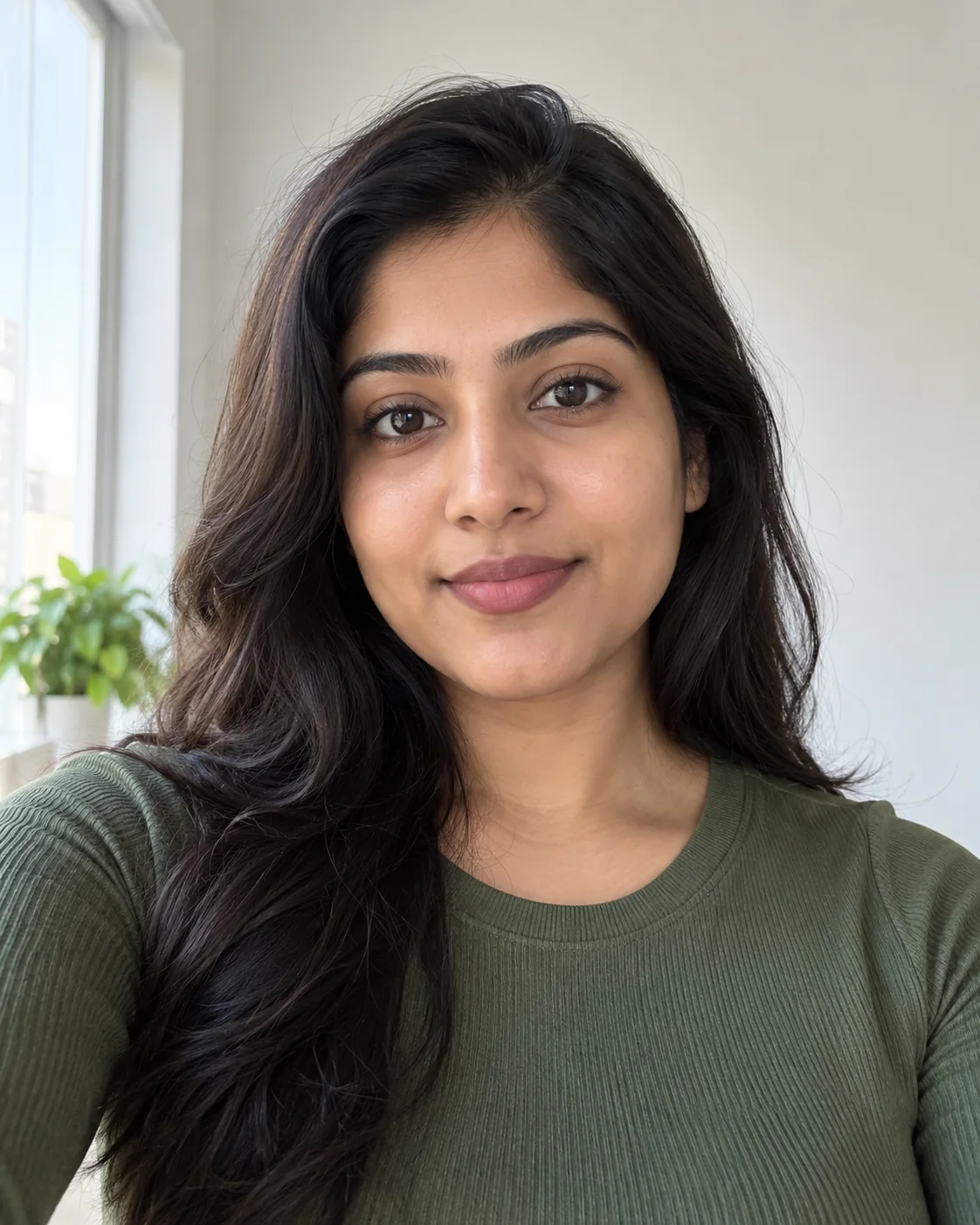
Step 2: Prepare a useful reference photo
Choose a sharp photo with natural light and one main subject. Avoid sunglasses, strong beauty filters, motion blur, and hands hidden behind the body if the prompt needs a hand gesture. Keep the person's face visible and leave a little space around the body so the model can move without cropping at the first frame.
Step 3: Pick the frame shape
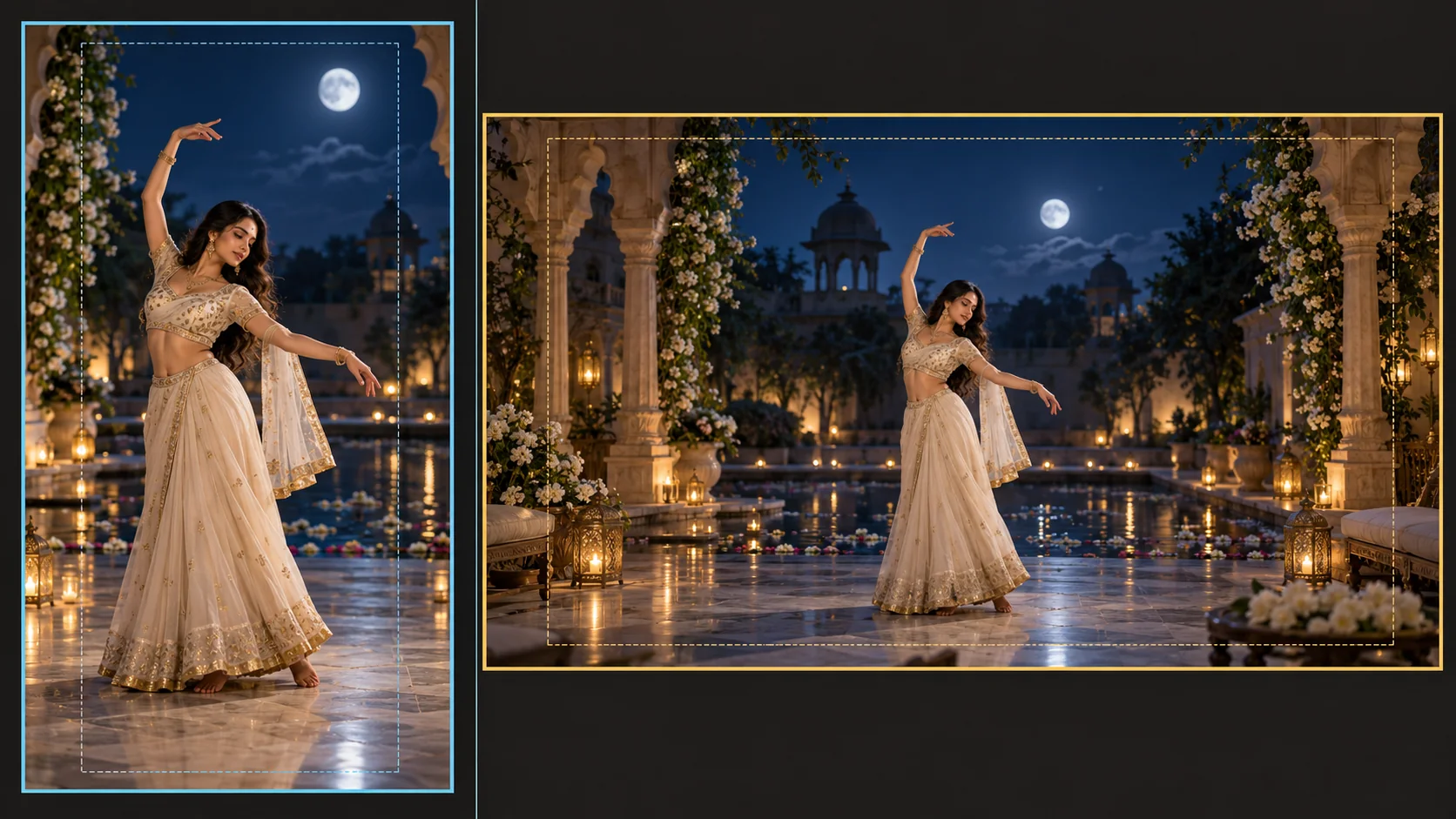
Choose 9:16 if the clip is meant for a vertical feed. Keep the face, hands, and full movement inside the center area because platform overlays can cover the edges. Choose 16:9 for a website or a wider edit, and leave room around the subject for a crop. Do not expect one export to fit every platform without reframing.
Step 4: Open the image-to-video workspace
Open the Image to Video workspace, sign in if prompted, and confirm the selected model. The link preselects the current Seedance 2.0 Mini catalog entry. If it is unavailable, choose a model displayed in the live selector and check its supported inputs, duration, aspect ratio, and credit estimate before submitting.
Use one image for a solo scene. If you create a duo, check that the selected model accepts both references, assign each person a clear role in the prompt, and keep their actions simple. Do not assume that a model will preserve every facial detail or follow a complex dance sequence exactly.
Step 5: Describe one original movement
Write the prompt in this order: who appears, what the first pose is, one movement, where it ends, and how the camera behaves. Include two or three details that should stay stable, such as hair, clothing color, or the space between the subjects. Ask for a short held ending so you have a usable final frame.
A useful prompt does not need to name Chuttamalle at all. It can say “soft cinematic Telugu romance mood” while specifying a new courtyard, new clothing, and a new two-step. Avoid “copy the movie dance,” “use Janhvi's face,” or a request to transform footage that you do not own or have permission to edit.
Step 6: Generate one draft and review it
Generate a single draft first. Watch the opening, the middle of the movement, and the final second. Check that the face remains consistent, the hands look plausible, the clothing does not change abruptly, and both people stay in their own space. If a problem appears, change one thing in the prompt and try again rather than rewriting everything at once.
Use One Motion Beat and a Stable Camera
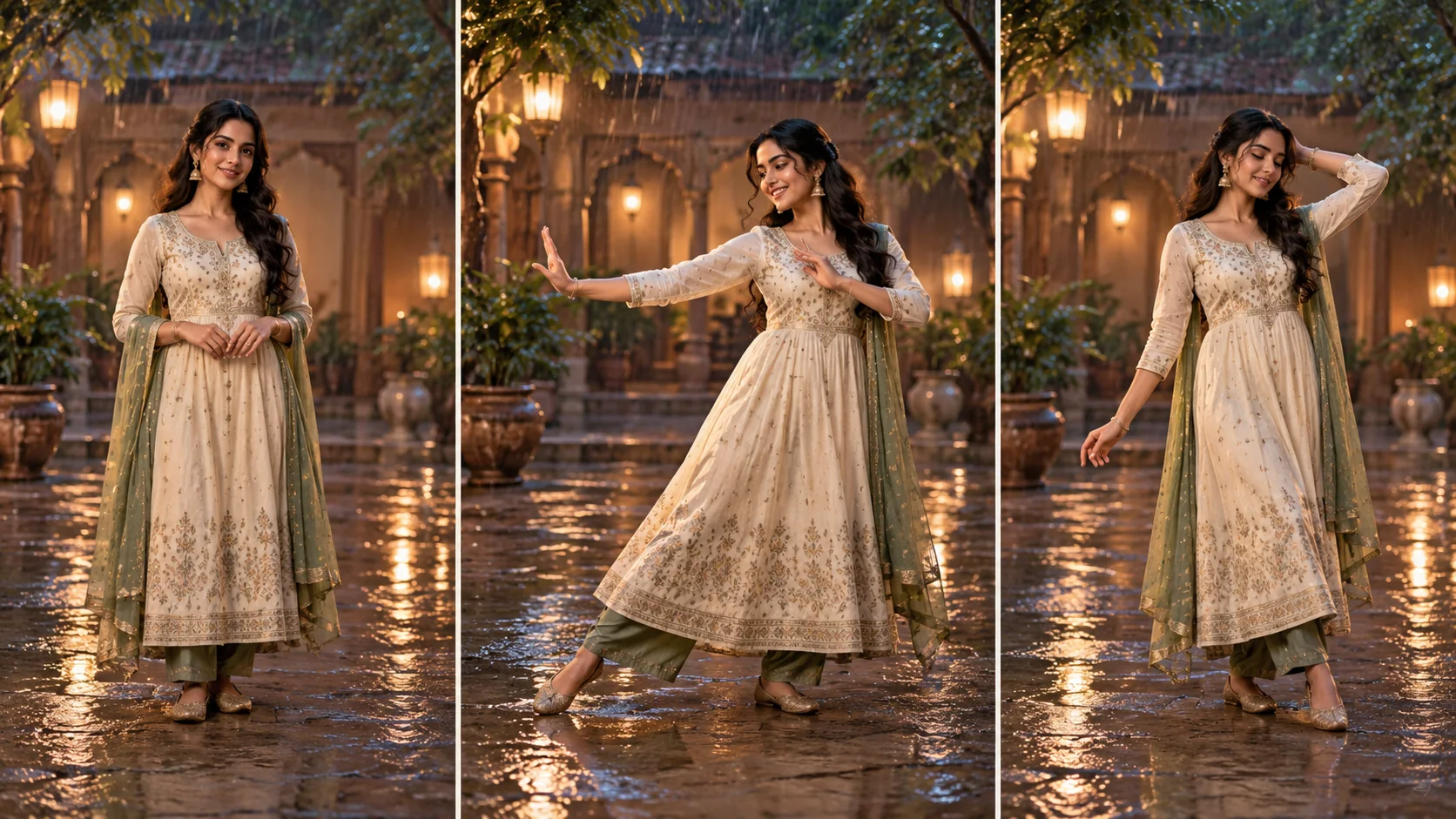
Short clips become easier to judge when the movement has a start, one main action, and a clear stop. A gentle side step and one hand flourish give a model fewer competing instructions than a spin, jump, camera orbit, costume change, and background transition in the same request.
Use one camera description, such as “locked medium-wide shot” or “slow push-in, then hold.” Keep the camera still when face continuity matters more than cinematic motion. For a full-body dance, avoid a close orbit that repeatedly hides the face or cuts off the hands. If a pose becomes too difficult, reduce the movement first; adding more adjectives rarely fixes a physical action the model cannot maintain.
The three-frame illustration below shows a stable opening, one small movement, and a held ending. It is a planning aid, not a sample output from the model.
Five Chuttamalle-Inspired AI Video Prompts
These prompts aim for an original cinematic dance mood. Replace the clothing, location, and movement with details you have permission to use. Keep the reference image attached when using image-to-video. None of these prompts requests the film's cast, footage, lyrics, or choreography.
Prompt 1: A gentle monsoon courtyard sway
Animate my uploaded reference photo of a consenting adult. Keep the person's face, hair, age, and clothing consistent. In a quiet rain-washed courtyard with warm lanterns, the adult shifts weight once, takes one slow side step, makes a small relaxed hand gesture, and returns to a still pose. Use a steady medium-wide camera and soft reflections on the ground. Original dance movement, fully clothed adult, no partner, no face change, no text, no logos, no copied choreography.
Prompt 2: A coastal golden-hour duet
Use the two uploaded reference photos only for the two consenting adult subjects. Keep each person's face and clothing distinct. On an original coastal terrace at sunset, they take one gentle step toward the camera, make a small mirrored hand movement, then settle apart in a relaxed pose. Slow side tracking camera, full bodies in frame, warm light, calm romantic mood. No touching, no identity blending, no extra people, no words, no logos, no film scene imitation.
Prompt 3: A quiet solo close-up
Animate the authorized adult in the reference image in a candlelit interior. Preserve facial features and natural expression. The subject looks toward the camera, turns slightly toward the window, and makes one small hand gesture at shoulder height. Keep the camera locked in a medium shot; let the background remain still. Subtle romantic mood, original movement, fully clothed, no lip-sync, no lyrics, no face swap, no added person.
Prompt 4: A festive evening dance
Create a short original dance clip from my reference photo of a consenting adult. Keep the same face, hairstyle, and festive outfit. In a courtyard with soft marigold-colored lights, the subject makes one measured two-step, lifts one hand briefly, and ends facing the camera. Full-body framing, steady camera, gentle fabric motion, realistic proportions. Do not copy a known routine or actor, add text, change clothing, or introduce extra dancers.
Prompt 5: A text-to-video fictional pair
Create a new scene with two fictional adult dancers who do not resemble real people. They share a quiet two-step on a moonlit terrace, pause at a comfortable distance, make one small hand gesture, and finish in a calm pose. Wide 16:9 frame, fixed camera, soft blue night light and a few warm lamps. Original choreography, respectful interaction, fully clothed adults, no celebrity likeness, no film footage, no song lyrics, no text or logos.
Image-to-Video or Text-to-Video?
Choose image-to-video when your own photo should guide the subject's appearance and opening composition. It is the more direct path for a selfie or a portrait you have permission to animate. The model can still change facial details during movement, so use a clear reference and restrained action. The Image to Video workspace opens that workflow.
Choose text-to-video when you want a fictional pair or a scene without uploading a person's photo. You have less control over identity because there is no personal reference, but the prompt can define the setting and mood from scratch. Try the Text to Video workspace, or browse the wider AI video workspace to compare modes.
The same one-action prompt structure works for other reference-led clips. For a product example that keeps one object stable through a short camera move, see the Roadster ramp food video guide.
A separate A2O Lite Neon Dance example shows another song-led dance format on this site. It is a different concept and does not use Chuttamalle footage or audio.
Add the Song After Generation
The video generator creates the visual scene. It does not provide permission to use the official Chuttamalle recording, and a model-generated soundtrack is not the same as the released track. Keep the picture and the audio as separate editing decisions.
If you want to post with the song, look for it in the publishing platform's own sound tools and confirm that the track is available for your account and intended use. TikTok's published guidance distinguishes its Commercial Music Library from other tracks for commercial posts. YouTube also provides in-product audio options for Shorts. Availability can differ by region, account type, video format, and licensing changes, so check the current screen before publishing.
If you cannot add the official track through an approved route, publish the clip silent or choose music that you have permission to use. Do not download the song from the film video and paste it over the AI clip. A separate upload can still be detected or removed, and writing the song title in a caption does not grant audio rights.
Fix Common AI Dance Video Problems
- The face changes during the step. The movement or camera may hide the face for too long. Use a front-facing reference, shorten the movement, and keep the camera steady.
- Fingers merge or multiply. The hands may be too close to the face or moving too quickly. Ask for one small hand gesture with a brief pause, and keep the hands visible in the reference.
- The body drifts out of frame. The crop may be too tight for the action. Use a full-body reference and leave space above the head and below the feet.
- Two dancers blend together. Their prompt paths may overlap. Give each person one action and keep a visible gap between them.
- The result looks like a different scene. The prompt may stack locations, lighting changes, and camera moves. Keep one setting and one camera instruction, then change only the failing element on the next attempt.
- The clip feels too busy. Too many actions may compete in a few seconds. Remove spins, jumps, and scene transitions, and keep one readable motion beat.
If a model changes the outfit or background despite a clear prompt, treat that as a generation limit. Reusing a stable reference can help, but it cannot guarantee an exact match in every frame. Use the best take, edit around the unstable section, or make a simpler clip.
Review the Clip Before You Share It
Check the result on the same size screen where viewers will watch it. Play it once without pausing to judge whether the action reads. Then replay the opening, the biggest movement, and the last frame to inspect face, hands, clothing, and crop. Watch for accidental text, extra people, or a gesture that looks different from the prompt.
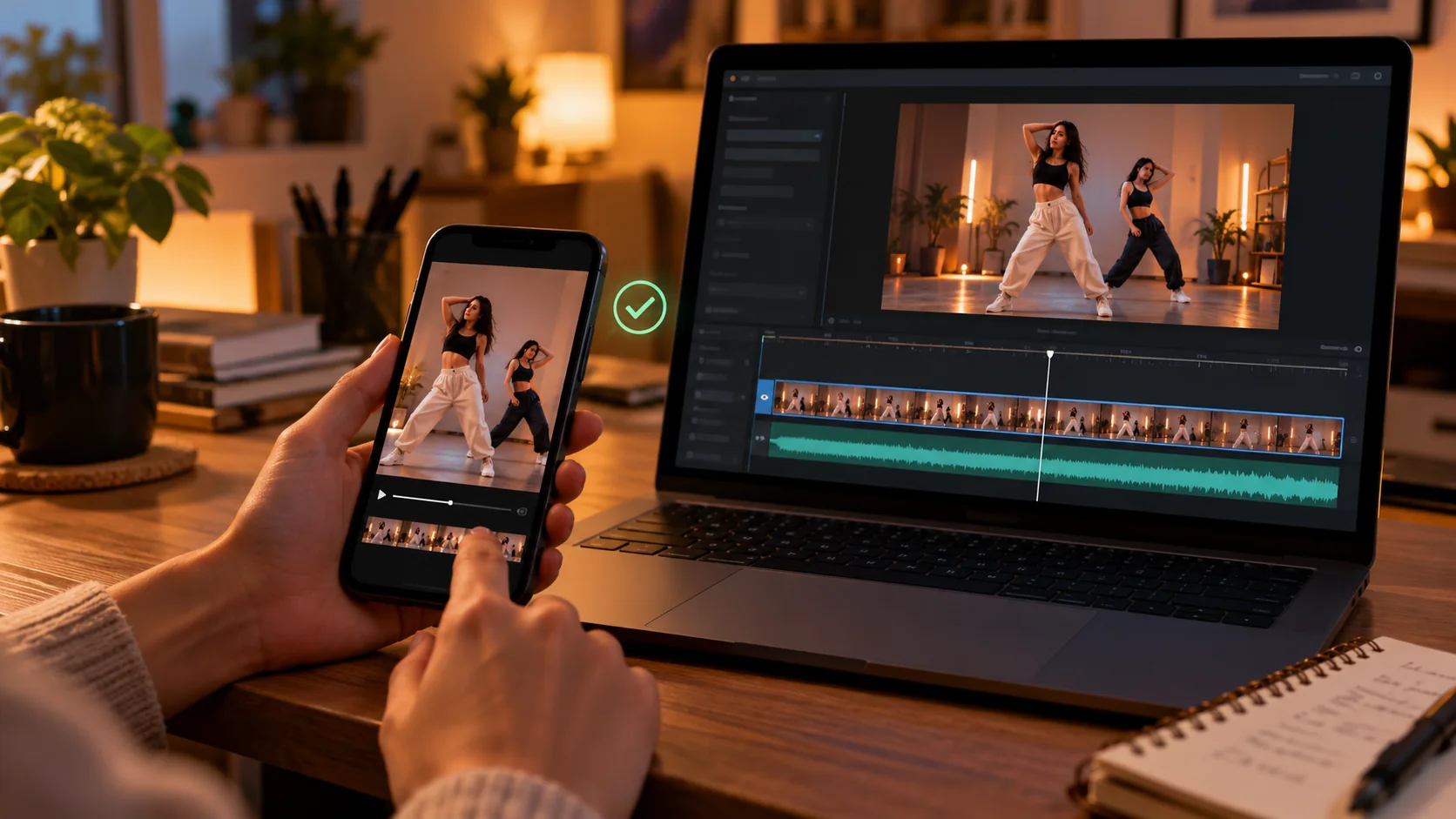
The figures and scenes in this article are generated illustrations. They show prompt planning and editing choices; they are not proof of a specific model result. Your output may vary with the selected model, reference image, prompt, and current provider availability. Review the entire clip before you share it, especially if it contains a real person's likeness.
Keep Photos and Identity in Your Control
A photo-to-video workflow can expose more than a face. A bedroom, school badge, workplace sign, location tag, or reflection may appear in the reference. Crop or replace those details before upload. Avoid using a photo that reveals information you would not want in the finished video.
For a real person, consent should cover both the AI edit and the place you plan to share it. Do not present a synthetic clip as a real performance, or as footage from Devara. If the posting service asks you to label AI-generated media, follow its current disclosure control. If someone asks you to remove a clip of them, take that request seriously and stop sharing it.
Frequently Asked Questions
What is Chuttamalle?
Chuttamalle is a Telugu song from the 2024 film Devara: Part 1. The official song video and a new AI-generated scene are different works. This guide uses “Chuttamalle AI video” as a search phrase for an original dance concept, not as the name of an official generator.
What does Chuttamalle AI video mean?
People use the phrase for several kinds of results: searches for the song, photo-based AI dance tools, and explainers about manipulated footage. Here it means a newly generated dance scene using an adult reference photo that the creator has permission to use.
Does Trending AI Video have an official Chuttamalle template?
No. Trending AI Video offers general image-to-video and text-to-video workspaces. This page provides original prompt ideas for those tools. It is not an official film template and does not reproduce the song video or choreography.
Can I use a photo of another person?
Only use a photo when the adult pictured has agreed to this AI animation and the way you plan to share it. For a duet, ask both people. Do not use celebrity, classmate, coworker, or family photos without their permission.
Will the generator add the Chuttamalle song?
Do not expect the exact commercial recording to appear. A generated audio track does not grant rights to a released song. Add music through the publishing platform's current audio tools if it is available for your account and intended use. Otherwise, keep the video silent or use music you are allowed to publish.
How do I reduce face or hand changes?
Use one sharp, well-lit reference and ask for one small movement. Keep the camera steady and the face visible. If a face or hand changes, shorten the action and try another take. Review each result before sharing it because image-to-video output can vary from the source.
What settings should I choose?
For a vertical social post, choose 9:16 and leave space around the subject. For a wide page or video, choose 16:9. The current Seedance 2.0 Mini catalog lists 4 to 15 seconds and 480p or 720p; confirm the options and cost shown in the workspace before you generate.
Can I post the clip as the real Devara video?
No. Describe it as an AI-generated fan-style scene, and do not imply that the film team, actors, or music rights holders made or approved it. Use only the images and audio you are allowed to share.
Make an Original Chuttamalle-Inspired Clip
Start with a photo you have permission to animate, give the model one simple movement, and review the result before posting. Add the track only through an audio route approved for your account and intended use. Keep the generated scene clearly separate from the official Devara performance.
Open the Image to Video workspace to try a solo reference workflow, or visit the Trending AI Video home page to choose another mode. For a scene without a personal photo, use Text to Video.