
Uncategorized
Anime Star Eye AI: How to Make the Selfie Effect
Learn the Anime Star Eye AI selfie effect with a clear portrait, copy-ready prompts, eye-placement fixes, stickers, and optional image-to-video motion.
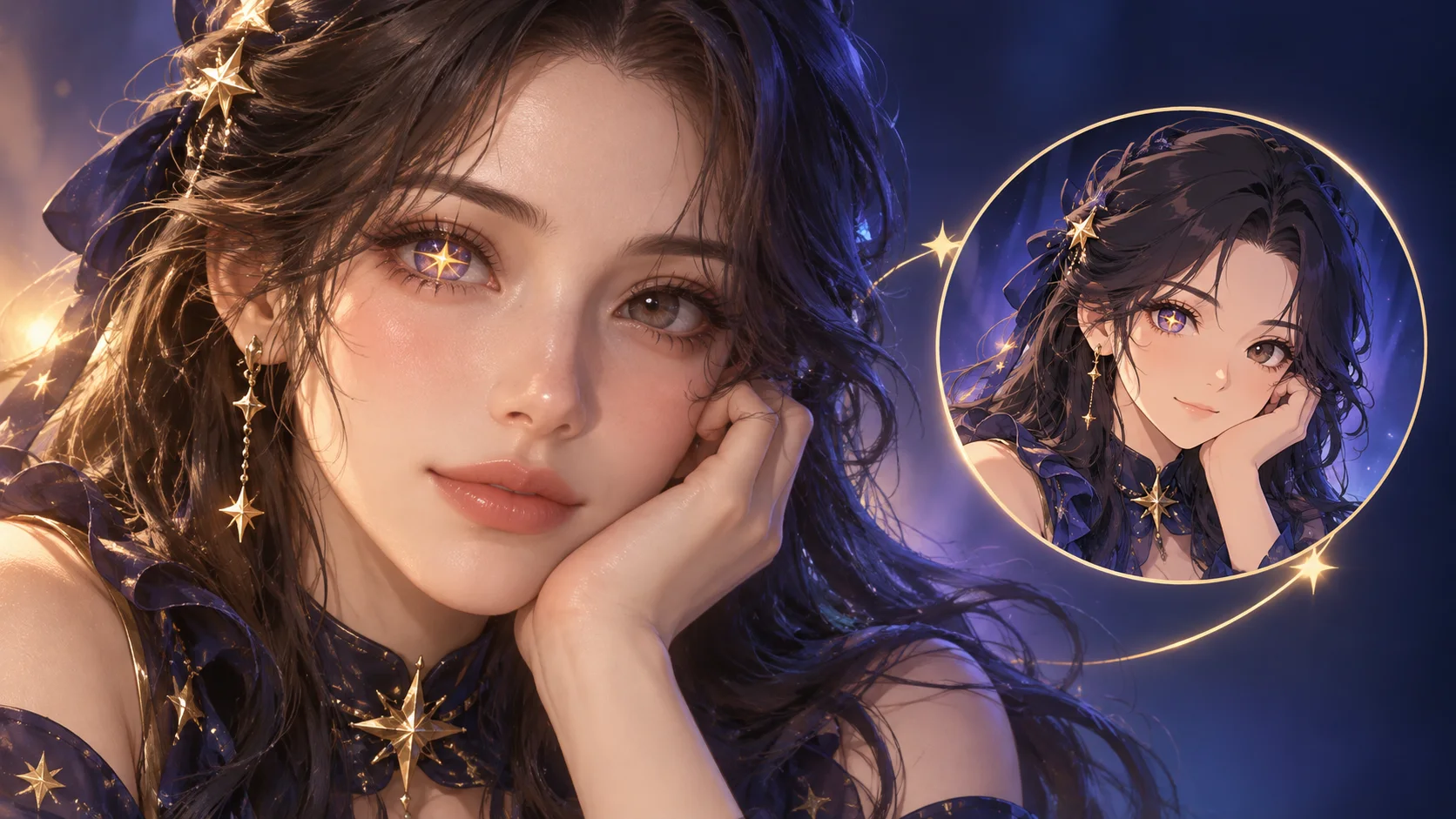
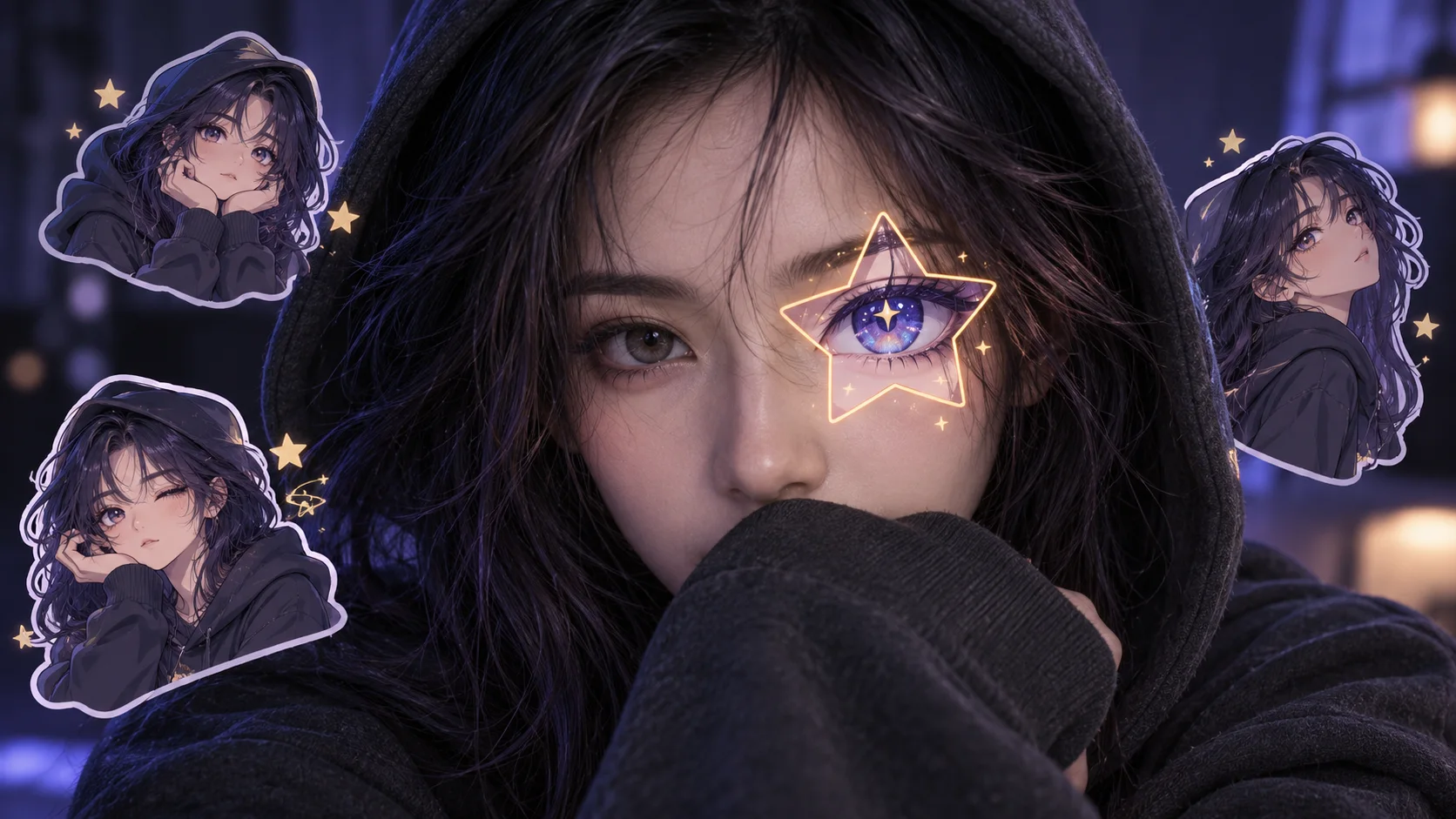
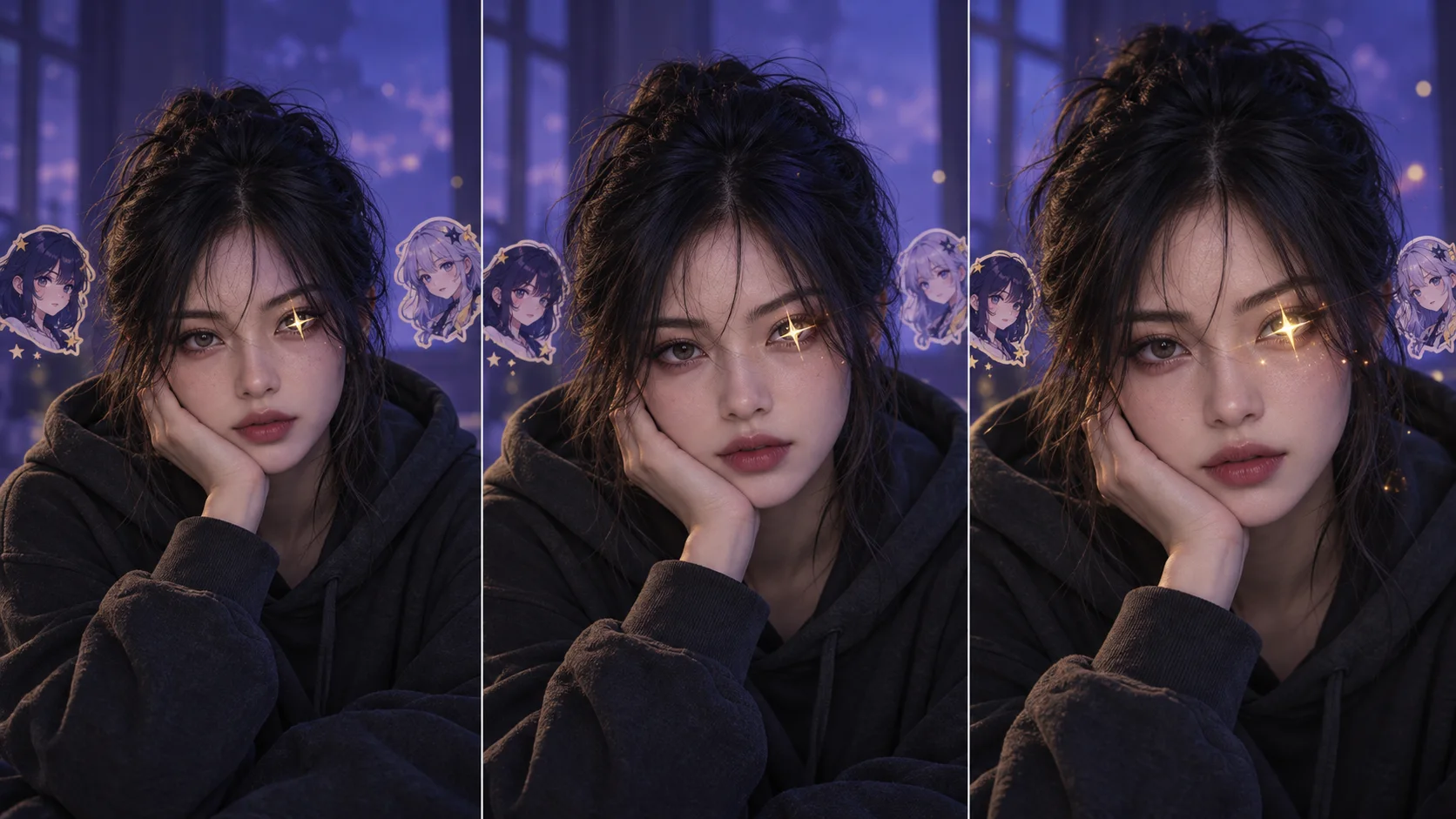
The Anime Star Eye AI selfie effect pairs a real portrait with an anime-style star eye over one eye and small anime-avatar stickers around the face. The label is also used for a different look: star-shaped highlights inside fully illustrated anime eyes. This guide focuses on the selfie effect and includes a separate prompt for the iris-only version.
The six images in this guide are original editorial illustrations. They are not results from the generator. Your output will depend on the reference photo, selected model, and prompt.
What does Anime Star Eye AI mean?
There is no single standardized Anime Star Eye filter. In current tutorials, the phrase can mean either:
- Star-eye selfie: Keep the portrait mostly photographic, add an anime eye treatment over one real eye, then arrange a few matching anime-avatar stickers around the portrait.
- Star-iris anime portrait: Redraw the person as an anime character and put a star-shaped catchlight inside one or both irises.
If you want the social selfie composition, use image-to-image and describe the eye placement and stickers separately. If you want a fully drawn character, start from text instead. The difference matters: “star eyes” alone can make the generator redraw the whole face when you only wanted an overlay.
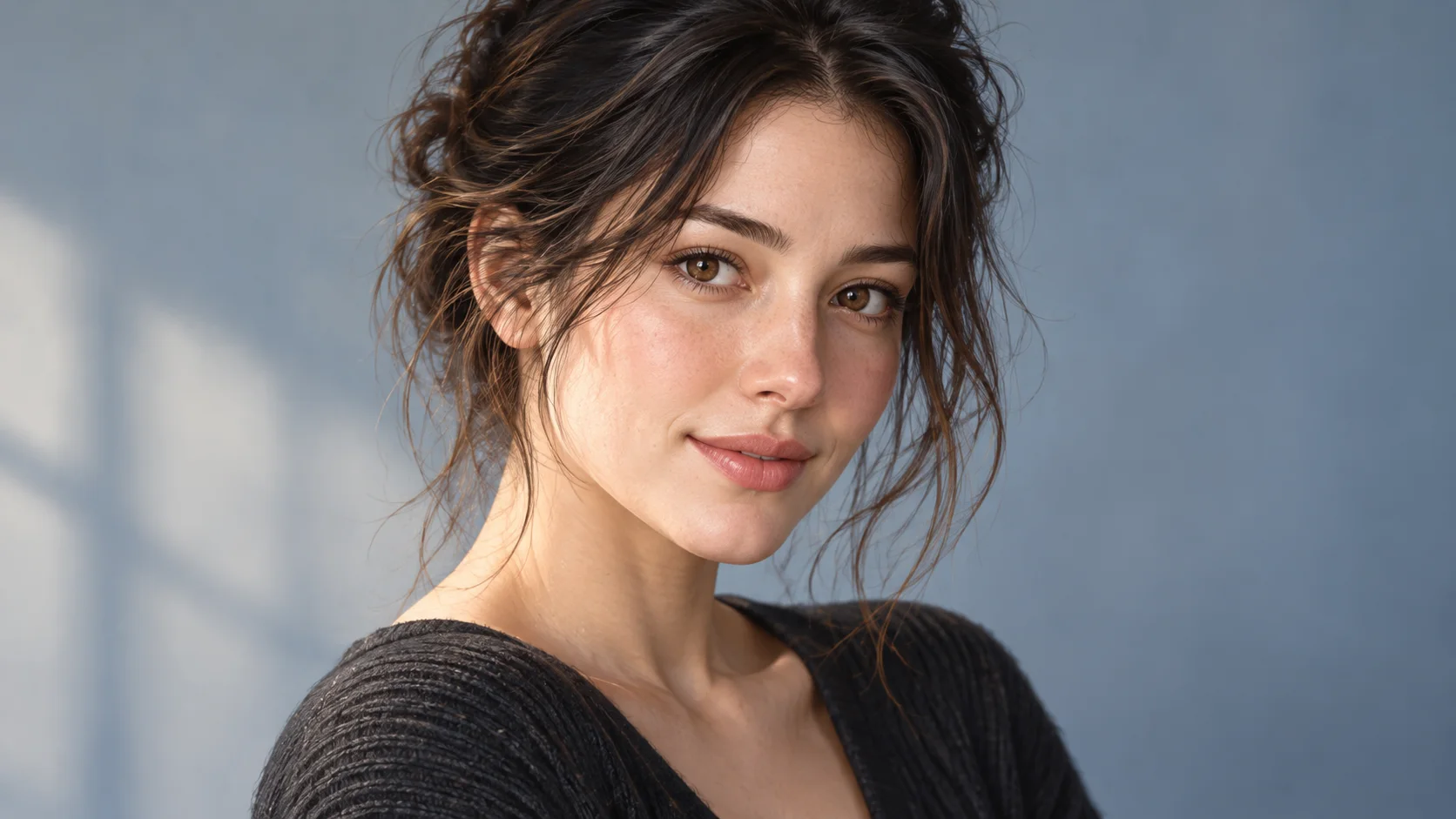
Start with a portrait that gives the model room to work
Use a photo you own or have permission to edit. A simple portrait usually gives the model clearer instructions than a group photo or a busy scene.
Look for:
- One adult subject, facing the camera or turned slightly to one side.
- At least one eye in focus, with no sunglasses or heavy shadow across it.
- Even light on the face and a background that does not compete with the stickers.
- Enough space around the head for the small anime panels.
Hair or a sleeve can cover part of the lower face if that is the mood you want, but keep the target eye visible. If the source image hides both eyes, the model has little information to align the effect.
How to make an Anime Star Eye AI selfie
- Open the Image to Image workspace and upload your portrait.
- Choose an image model that is available for editing in the current selector. Review its visible settings and credit estimate before generating.
- Describe what should stay the same before describing the new effect. Name the eye to edit, the shape and size of the star, and where the stickers should sit.
- Generate one version. Check the eye alignment at full size before you crop or share it.
- If the face changes too much, remove style adjectives first. If the star lands in the wrong place, state its position relative to the eye and ask for one small change in the next prompt.
Here is a starting prompt for the selfie version:
Use the uploaded portrait as the identity reference. Keep the same adult person, face shape, expression, hair, clothing, pose, and background. Keep the photo mostly realistic. Add one small five-point star-shaped anime eye frame centered precisely over the person's left eye; show one original luminous anime eye inside it, aligned with the uncovered eye. Add three small original anime portrait stickers of the same person around the outer corners of the image, echoing the same hair and outfit. Keep exactly two eyes, one face, natural proportions, clean sticker edges, and a restrained violet-and-gold palette. Do not add text, logos, extra eyes, or another person.
The prompt names the identity constraints, the one local change, and the sticker layout. If your model supports a separate image-editing or masking control, use it only if it is available in the current workspace. Do not assume every model has the same controls.
Choose a style without changing the whole composition
Once the eye and sticker positions are working, change one visual choice at a time. A new color palette is easier to judge than changing the palette, lighting, crop, hair, and anime style in one request.
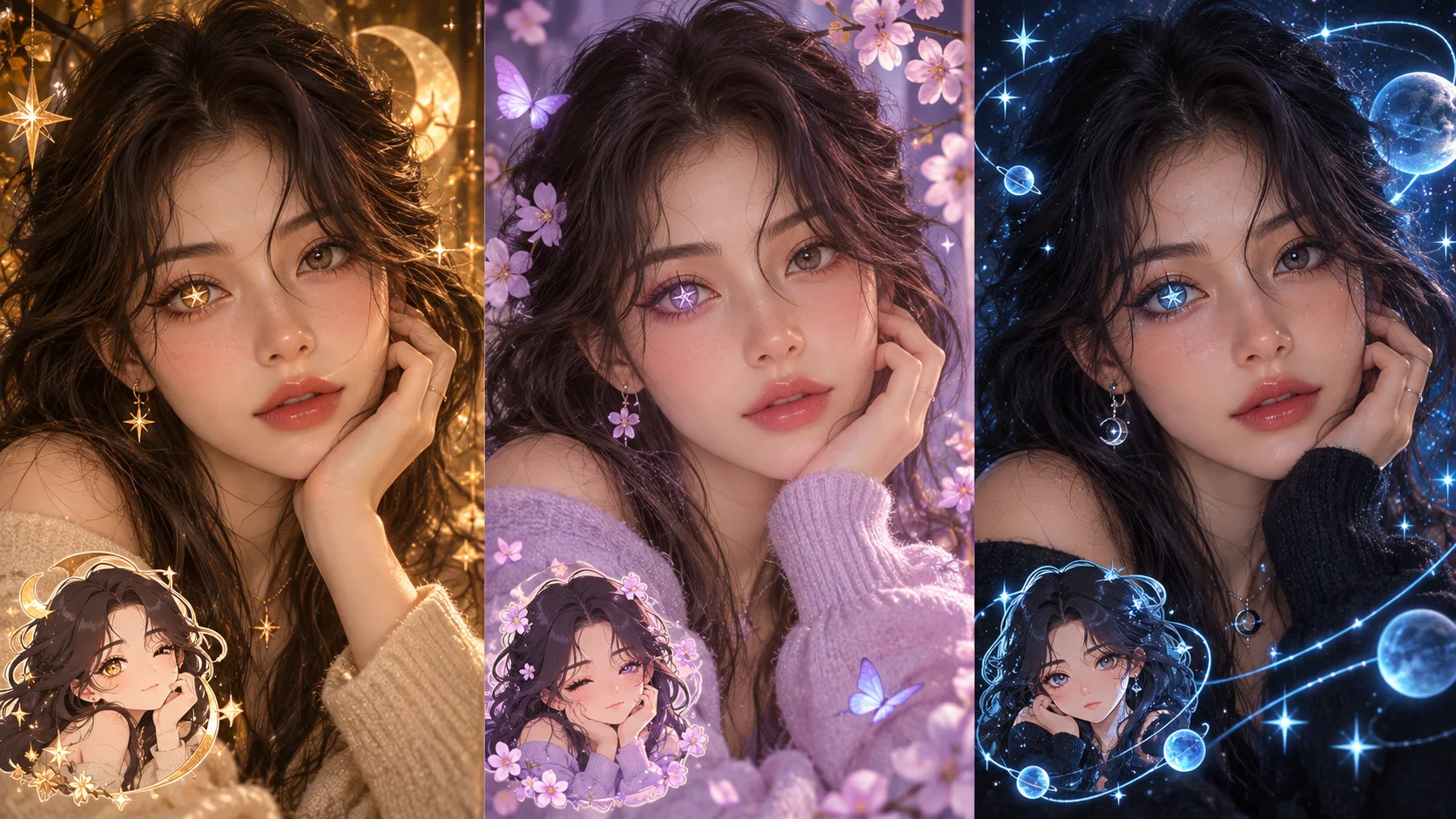
Try a warm gold-and-indigo look for a cinematic portrait, soft lavender for a lighter result, or cyan and deep blue for a night-sky mood. Keep the star easy to read at thumbnail size. Small points and fine iris details can disappear when a social app crops the image.
If you want a fully illustrated anime portrait instead of a photo with stickers, use the Text to Image workspace and try this separate prompt:
Create an original anime portrait of an adult character with the same broad hair color and mood as my reference. Give the character one crisp five-point star-shaped highlight inside the left iris, not a star covering the face. Use balanced facial proportions, expressive eyes, clean linework, and a limited lavender-and-gold palette. Keep the background simple. Do not imitate an existing character or add text.
For more image options, the AI Image workspace shows the site's current image-generation entry points.
Fix the eye before adding more effects
The eye is the focal point, so check it before adjusting glow or background. If an edit misses, make the next request narrower:
- The star floats above the eye: Ask for it to be centered over the visible eye, with its middle aligned to the pupil.
- The star covers the brow or nose: Reduce its size and say it must stay within the eye area.
- The model changes the whole face: Repeat the identity constraints and remove broad instructions such as “turn the whole photo into anime.”
- The result adds extra eyes or faces: State “one face, exactly two eyes” and ask for one targeted edit.
- The stickers look unrelated: Describe them as small original portraits of the same person, with matching hair, outfit, and palette.
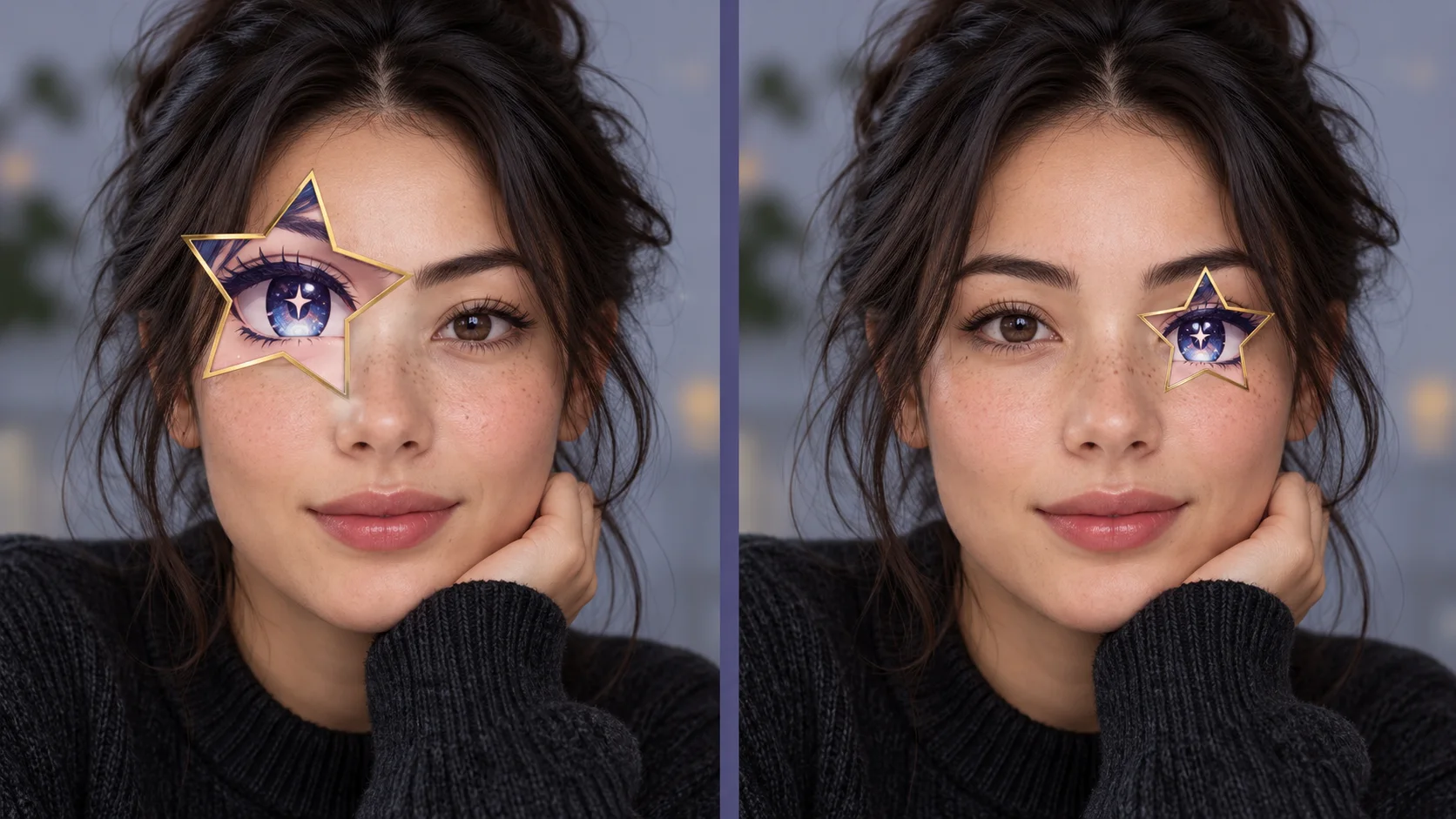
If the result is still inconsistent, simplify the image. Use one sticker instead of three, remove extra sparkle, and make the eye the only requested change. A restrained result is easier to refine than a prompt that asks the model to rebuild every part of the photo.
Turn the finished portrait into a short clip
The trend also works as a short reveal: hold on the source portrait, move in slowly toward the star eye, then show the finished stickers. Keep the motion subtle so the eye stays in place. A large head turn or fast camera move can make small facial details shift.
Upload the finished still to the Image to Video workspace if you want to test motion. Check the current model options and displayed settings there; a still image does not guarantee that the eye or sticker layout will remain unchanged in every generated frame.
Common questions
Is Anime Star Eye AI a filter or an image generator?
The phrase can refer to a one-tap template, a photo-editing workflow, or a general anime portrait prompt. On this site, use image-to-image for a selfie-based edit or text-to-image for a new illustrated character.
How do I keep the star over one eye?
Name the exact eye and describe placement relative to the pupil: “center the small star frame on the left eye, with the anime eye aligned to the uncovered eye.” Ask for a small change if the first result is off. Exact placement varies by model.
Can I make the star-eye image without a selfie?
Yes. Use text-to-image to create an original adult anime character and specify whether the star belongs inside the iris or frames one eye. Do not expect a text-only prompt to preserve a real person's identity.
Why does the AI change my face?
An image model may reinterpret the full portrait, especially when the prompt asks for an overall anime restyle. Use image-to-image, say which details must stay unchanged, and describe only the eye and stickers as edits.
Can I use an existing anime character for the stickers?
For a personal or public post, an original character inspired by the person's own hair and outfit avoids presenting someone else's character art as yours. Use images and likenesses only when you have the rights or permission to do so.
Make the effect your own
Start with a clear portrait, decide whether you want a star inside the iris or a star-eye selfie overlay, and keep the first prompt focused on placement. Add color and motion after the face reads correctly. You can begin in the Image to Image workspace, browse the workspace, or return to the Trending AI Video homepage.